What Calcanvas can do

Every feature in one place, with formulas you can type into a board to see it work. The list changes as Calcanvas does; it was last updated on November 27, 2026.

See it in action

New lately

Formulas and units

Formula cells calculate as you type, carry units through every step and read top to bottom like a hand calculation.

Formulas that calculate as you type

Type plain math in a formula cell and the result appears next to it. Change a value and every cell that uses it updates. Cells run top to bottom, then left to right, so define a name above the cells that use it.

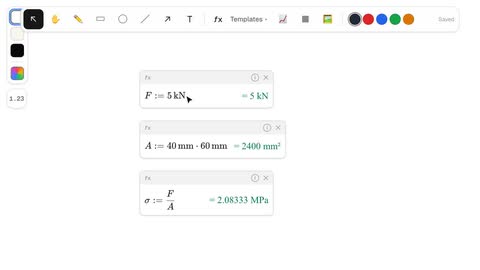
Three formulas typed on a board. Changing F to 5 kN updates the stress below it.

Where: Press M or click ƒx in the toolbar. Or click an empty spot on the board and pick Formula, or press =.

F := 2.5 kN= 2.5 kN
A := 40 mm * 60 mm= 2400 mm²
sigma := (F / A).to(MPa)= 1.04167 MPa

Tip: Both = and := define a value. Use == when you want to compare.

Units that convert and check themselves

Write units after numbers: mm, kN, MPa, hp, psi, kWh, ft, lbf and hundreds more, with prefixes. Units convert and cancel on their own, and .to() shows a result in the unit you want. Adding a length to a mass is an error, not a number.

5 km + 300 m= 5.3 km
(100 hp).to(kW)= 74.57 kW
5 km + 2 kgCannot convert from 'kilometer' ([length]) to 'kilogram' ([mass])

Tip: Don't name a variable like a unit. After m := 1200 kg, a later 7 m/s means kilograms. Use mass instead.

Temperatures in °C and °FNew

Type temperatures as you would write them: 10 °C, 55 degC or 98.6 degF. Subtracting two temperatures gives a temperature difference (Δ°C), which is what heat and expansion formulas need, and .to() converts between scales.

T_in := 10 °C= 10 °C
T_out := 55 °C= 55 °C
dT := T_out - T_in= 45 Δ°C
(98.6 degF).to(degC)= 37 °C

Tip: Adding two °C temperatures or doubling one is an error, as it should be. Use a difference, or kelvin.

Choose the unit of any result

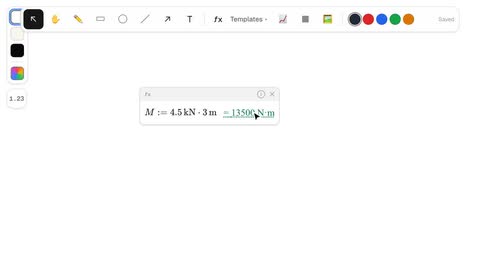
Click a result to pick the unit it shows in (kN*m, MPa, % and so on), as in Mathcad. The choice stays with that cell.

Clicking a result and typing a unit: the moment shows in lbf·ft, then N·m.

Where: Click the green result of a formula.

Number formats and decimal comma

Show results as significant figures, fixed decimals (2.50 kN), scientific (1.235×10⁴) or engineering notation. Set a default for the whole board, or a format for one result. Boards can use a decimal comma.

Where: The 1.23 button under the background colours sets the board default. Click a result for its own format.

Show your work

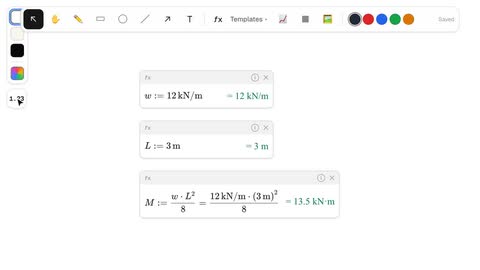
Show each formula with its values filled in, the way a hand calculation is checked: M = w·L²/8 = 12 kN/m·(3 m)²/8 = 13.5 kN·m.

Show values in formulas, switched on for the whole board.

Where: 1.23 button → Show values in formulas, or click one result → Values.

w := 12 kN/m= 12 kN/m
L := 3 m= 3 m
M := w*L^2/8= 13.5 kN·m

Greek letters and subscripts

Names can use Greek letters and underscores, and they display as subscripts: σ_allow shows as σ with "allow" below.

σ_allow := 250 MPa= 250 MPa
F_y := 355 N/mm^2= 355 N/mm²
σ_allow / F_y= 0.704225

Functions, ranges and arrays

Define your own functions, ranges and arrays. Math on a range or array applies to every item.

f(x) := x^2 + 1= f(x)
f(3)= 10
k := 0..4= [0, 1, 2, 3, 4]
f(k)= [1, 2, 5, 10, 17]

Design checks with if()

Compare values and print a verdict that updates with the numbers.

σ := 180 MPa= 180 MPa
σ_max := 250 MPa= 250 MPa
if(σ <= σ_max, "OK", "NG")= OK

Templates and the / menu

Type / in an empty cell, or open the ƒx ▾ menu, for integrals, derivatives, sums, matrices, solve blocks and plots. Tab jumps between the blanks of a template.

Where: Type / in a formula cell, or click Templates in the toolbar.

Solving and higher math

Numeric solvers, calculus, symbolic algebra and matrices, all with units.

Solve for any name

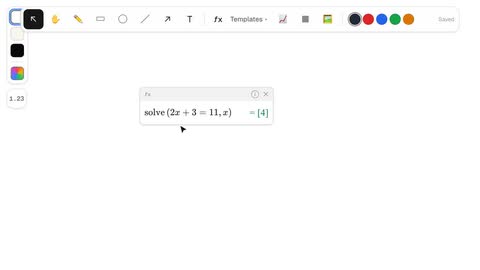
Type an equation with a single =, such as 2*x + 3 = 11, and the cell offers a Solve for x button that rewrites it as a solver call.

An equation typed with =, then the Solve for x button.

Roots of equations and polynomials

root() finds a root near a starting value, or between two bounds. polyroots() returns every root of a polynomial from its coefficients.

x := 1= 1
root(x^2 - 2, x)= 1.41421
polyroots([-2, 0, 1])= [-1.41421, 1.41421]

Solve blocks: Given and Find

Put a Given cell, then equations and limits as their own cells, then Find(x, y). Calcanvas solves the system from your starting values. MinErr, Minimize and Maximize work the same way.

x := 1= 1
y := 1= 1
Givensolve block
x^2 + y^2 = 6constraint
x - y = 0constraint
Find(x, y)= [1.73205, 1.73205]

Derivatives, integrals and sums

Numeric derivatives at a point, definite integrals (infinite bounds too), sums and products. They display as d/dx, ∫, Σ and Π, and units carry through.

x := 2= 2
deriv(x^3, x)= 12
integral(t^2, t, 0, 3)= 9
sum(i^2, i, 1, 10)= 385

Symbolic algebra

Exact answers with simplify, expand, factor, apart, collect, diff, integrate, solve, limit and series. When every name in the answer has a value, it turns into a number with units.

expand((a + b)^2)= a^2 + 2*a*b + b^2
factor(z^2 - 4)= (z - 2)*(z + 2)
solve(z^2 = 2, z)= [-sqrt(2), sqrt(2)]

Matrices

Write rows separated by semicolons. * is the matrix product, and there are inverse, transpose, det, lsolve, eigenvalues and more. Mixed units work, as in a stiffness matrix.

M := [2, 1; 1, 3]= [2, 1; 1, 3]
det(M)= 5
M^-1= [0.6, -0.2; -0.2, 0.4]

Statistics, fits and interpolation

mean, median, stdev, corr, slope, intercept, polyfit, linterp, spline, linspace, sort, cumsum, plus special functions such as erf and Gamma.

data := [4, 8, 15, 16, 23, 42]= [4, 8, 15, 16, 23, 42]
mean(data)= 18
median(data)= 15.5
stdev(data)= 13.4907

Plots and data

Charts that follow your formulas, and tables you can paste straight from a spreadsheet.

Plots with units on the axes

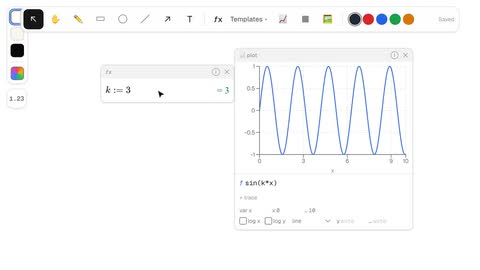
Plot functions over a range of x, or plot over a range variable that has units (xs := (0, 0.5 .. 6) * m). Several traces fit on one plot. Axes can be logarithmic, lines can show points, and the y range can be fixed.

A plot of sin(k·x) redraws as k goes from 1 to 3.

Where: Click the chart button in the toolbar, or pick a plot from Templates.

Tables from Excel, CSV or .xlsx

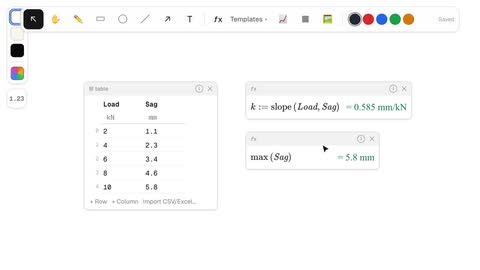
Paste a range from Excel or Google Sheets, drop a CSV or .xlsx file on the board, or import one into a table. Each named column becomes a vector you can use in formulas and plots, with its unit. Empty cells are skipped.

A range pasted from a spreadsheet becomes a table, and formulas use its columns.

Where: Click the table button in the toolbar, or paste a copied range anywhere on the board.

The whiteboard

An infinite canvas: sketch, write and lay out the calculation the way you would on paper.

Pen, shapes, arrows and text

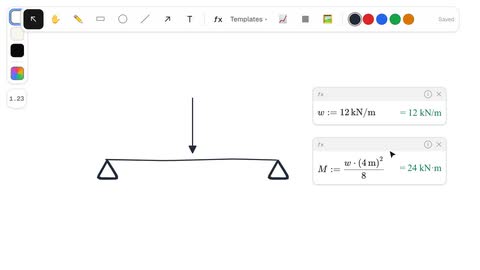
Draw freehand, add rectangles, ellipses, lines and arrows, and write in text boxes. Pick a colour from the toolbar; picking one also recolours whatever is selected.

A beam sketched with the pen and an arrow, then its load and moment typed next to it.
V
Select
H
Pan (hand)
P
Pen
R
Rectangle
O
Ellipse
L
Line
A
Arrow
T
Text
M
New formula cell

Click anywhere and type

Click an empty spot and a small menu opens there. Start typing to write text, press = or pick Formula for a formula cell, or put a plot or a table on that spot.

Text boxes with fonts and listsNew

Choose a hand-drawn, serif or monospace font, make parts bold or bigger, and start bulleted or numbered lists. If you type math into a text box, a chip offers to turn those lines into formulas.

Images

Paste or drop a screenshot, photo or drawing onto the board, then move and resize it like any other object.

Align, copy and undo

Select several objects to align or space them evenly. Copy, paste and duplicate work on anything on the board, and undo covers every change.

Ctrl/⌘ Z
Undo
Ctrl/⌘ Shift Z, Ctrl/⌘ Y
Redo
Ctrl/⌘ C, X, V
Copy, cut, paste
Ctrl/⌘ D
Duplicate
Delete
Delete the selection

Paste from Excalidraw

Shapes, arrows and text copied in Excalidraw paste onto the board as editable objects.

Board background

Switch a board between light, cream, dark and a colour of your own.

Where: The colour swatches on the left of the board.

Phones and tablets

Boards work in a mobile browser: one finger pans, two fingers pinch to zoom, and the toolbar sits at the bottom of the screen.

Sharing and export

Work on a board together, hand it in as a PDF, or publish it for anyone to read.

Edit together in real time

Everyone on a board sees each other's cursors and changes as they happen. Share an edit link or a view-only link, and change or remove people's access at any time.

Where: Share in the board's header (owner).

Publish a board to the webNew

Turn a board into a public, read-only page with its text, typeset formulas, results, tables and plots, and your name as the author. Anyone can open the board itself or make their own copy to change. Boards with a title and at least three results can show up in search engines. Unpublish whenever you like.

Where: Share → Publish to the web.

PDF on A4 or Letter pages

Export a board as numbered pages that break between cells, with the board's title and the date, or as the whole board on a single page.

Where: Share → Export → Download as PDF.

LaTeX for papers and OverleafNew

Copy one formula with its result as LaTeX, or copy or download the whole board as a .tex document with its text, formulas and tables.

Where: Click a result → Copy as LaTeX. For the board: Share → Export.

Getting started

Ways in, with or without an account.

Worked engineering examplesNew

Beam deflection, pump power, three-phase power, hoop stress and more, each a checked worksheet you can open as your own board and change.

Where: Examples in the site menu, or the templates at the top of your boards page.

Stars, folders and TrashNew

Your boards page shows each board as a card with a preview of its formulas and sketches. Star the ones you use most, sort boards into coloured folders, and search by title, variable or unit. A deleted board waits in Trash until you restore it or delete it for good.

Where: Your boards page: the ★ and … on each card, Folders + in the sidebar.

⌘K
Search boards
N
New board
G / L
Grid or list view
?
All shortcuts

Tip: Stars and folders are yours alone: filing a shared board doesn't change it for anyone else.
Light and dark themeNew

Calcanvas starts light. Switch to dark from the moon button on your boards page or the account menu, and the choice sticks in this browser.

⇧D
Switch theme on the boards page

Try it without an account

A demo board works straight away and is kept in your browser. Sign up later and it moves into your account.

Where: Try it without an account, on the home page.

Tell us what's missing

The Feedback button on every board sends a note straight to the people building Calcanvas. Bugs, wishes and confusing bits all help.

Where: Feedback in the board's header.

Start your first worksheet

Free during early access, no credit card. Open a canvas and watch your math add up in the right units.